
Planning your month should be simple, flexible, and convenient.
Printable Monthly Calendar
Plan your month with ISO week numbers, public holidays and personal events. Customize colors and print in A4 landscape.
In the print dialog, choose Save as PDF, A4 landscape, margins None, disable browser headers/footers and enable background graphics.
Add Personal Event
Whether you need to organize personal appointments, track important dates, prepare a work schedule, or remember birthdays, a monthly calendar helps you see your plans in one place.
With the free NeonTimer Monthly Calendar, you can create a personalized monthly calendar directly in your browser.
Unlike a basic calendar that only displays dates, NeonTimer provides additional features to help you organize your schedule.
You can explore international holidays, select your country, create custom events, add icons, choose color themes, and print your calendar as a PDF.
Your personalized events are also saved in your browser using local storage, allowing you to return later and continue organizing your calendar on the same browser and device.
No complicated setup is required to start planning.
Free Online Monthly Calendar
Use our free monthly calendar to view dates, organize events, and prepare your personalized schedule.
[INSERT MONTHLY CALENDAR SHORTCODE HERE]
Choose your month and year, explore holidays, and add events to the dates that matter most.
You can customize your calendar with different colors and event icons before printing or saving it as a PDF.
What Is a Monthly Calendar?
A monthly calendar is a planning tool that displays all the days of a selected month in a familiar calendar grid.
It allows users to visualize dates, identify important events, and organize activities.
A monthly calendar can be useful for:
- Personal appointments.
- Birthdays and anniversaries.
- Work schedules.
- School activities.
- International holidays.
- Family events.
- Meetings and deadlines.
- Vacation planning.
- Monthly goals.
- Special celebrations.
Instead of checking individual dates separately, a monthly calendar provides an overview of the entire month.
This makes it easier to understand how your activities are distributed throughout the weeks.
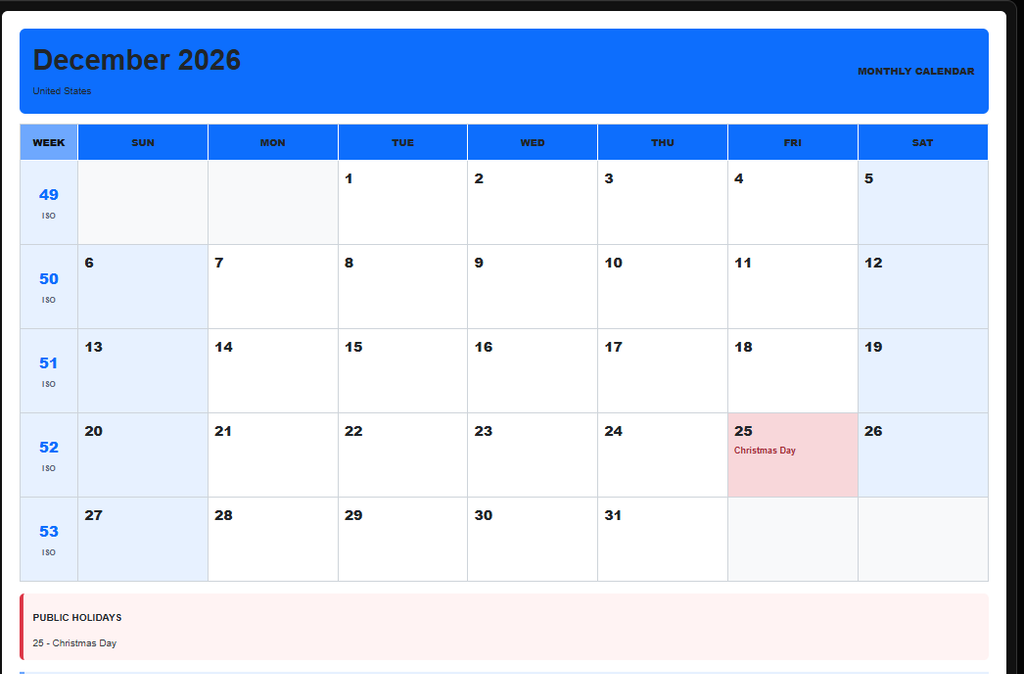
Features of the NeonTimer Monthly Calendar
NeonTimer combines traditional calendar functionality with customizable planning features.
1. Monthly Calendar View
View all the dates of a selected month in a clear calendar layout.
A monthly view makes it easier to identify weekends, important dates, and upcoming activities.
You can use it to plan work schedules, personal activities, or special events.
2. International Holidays
One of the most useful features of the NeonTimer Monthly Calendar is its support for international holidays.
Different countries celebrate different national holidays, cultural events, and public observances.
By selecting a country, you can view the holidays available for that location.
This feature is especially useful for international teams, travelers, students, and people working with clients in different countries.
Holiday information may vary by country, region, and year. Always confirm official dates when planning activities that depend on public holiday regulations.
3. Country Detection and Selection
NeonTimer can detect a country automatically and also allows you to select another country.
This makes the calendar useful for both local and international planning.
For example, you might want to view holidays in the United States while preparing a business schedule, then switch to Costa Rica to check local celebrations.
Manual country selection gives you greater control over the holiday information displayed.
4. Custom Calendar Events
A useful monthly calendar should allow you to organize more than public holidays.
With NeonTimer, you can add personalized events to individual dates.
Examples include:
- Birthday parties.
- Wedding anniversaries.
- Medical appointments.
- Business meetings.
- School exams.
- Family celebrations.
- Travel dates.
- Project deadlines.
- Personal reminders.
Custom events make your monthly calendar more relevant to your daily activities.
5. Event Categories and Icons
NeonTimer allows you to associate icons with events.
Icons make it easier to recognize the purpose of an event without reading lengthy descriptions.
For example:
| Event Type | Suggested Icon |
|---|---|
| Birthday | 🎂 |
| Wedding | 💍 |
| Appointment | 📅 |
| Meeting | 💼 |
| Vacation | ✈️ |
| Celebration | 🎉 |
| School Event | 🎓 |
| Important Reminder | ⭐ |
| Personal Event | ❤️ |
A visual calendar can help users identify different types of activities quickly.
6. Personalized Event Descriptions
In addition to selecting an event type, you can include personalized text.
For example, instead of displaying only a birthday icon, you can add:
Birthday – Family Celebration
Or:
Appointment – Dentist at 10:00 AM
Custom descriptions help make calendar entries more informative.
7. Calendar Color Themes
Everyone has different preferences when organizing information.
NeonTimer provides color themes that allow you to customize the appearance of your calendar.
Color customization can help distinguish different visual styles and make the calendar more comfortable to use.
Whether you prefer a bright calendar or a darker interface, themes give you additional flexibility.
8. Printable Monthly Calendar
Sometimes a digital calendar is not enough.
You may want to place a calendar on your desk, attach it to a wall, or distribute a monthly schedule to family members or colleagues.
NeonTimer allows you to print your personalized monthly calendar.
This is useful for creating physical copies of your monthly plans.
9. Monthly Calendar PDF
The ability to print a calendar as a PDF makes the tool useful for sharing and archiving monthly schedules.
For example, you can prepare a calendar containing:
- Important holidays.
- Family birthdays.
- Work meetings.
- Personal appointments.
- Monthly activities.
Then create a PDF through the available printing workflow.
A PDF preserves a printable version of the calendar that can be stored or shared.
10. Automatic Event Storage
NeonTimer saves personalized calendar events using your browser’s localStorage.
This means your events can remain available when you return to the website using the same browser and device.
You do not need to recreate every event each time you visit.
However, browser storage is local to your browser profile. Events may be lost if you clear site data, use private browsing, change devices, or reset your browser.
For important events, keeping an additional copy of your calendar is recommended.
How to Use the NeonTimer Monthly Calendar
Creating a personalized monthly calendar is straightforward.
Step 1: Open the Monthly Calendar
Visit the NeonTimer Monthly Calendar page.
The calendar displays the selected month and its dates.
Step 2: Choose Your Month and Year
Navigate to the month and year you want to organize.
For example:
- January 2027.
- February 2027.
- March 2027.
- December 2027.
You can prepare calendars for upcoming months and plan important events in advance.
Step 3: Select Your Country
Choose the country whose holidays you want to display.
You can use the automatically detected country or manually select another location.
Step 4: Review International Holidays
Check the holidays displayed on the calendar.
This can help you identify important dates before scheduling meetings, travel, or work activities.
Step 5: Add Personalized Events
Select a date and create a custom event.
For example:
Date: March 15
Event Type: Birthday
Description: Family Birthday Celebration
Icon: 🎂
The event becomes part of your personalized calendar.
Step 6: Customize the Calendar Theme
Choose the available color theme that best matches your preferences.
Step 7: Review Your Monthly Schedule
Check that your events, dates, and descriptions are correct.
Step 8: Print or Save as PDF
Use the calendar’s printing option to prepare a printable version.
If your browser provides a Save as PDF destination, you can create a PDF copy of the calendar.
How to Create a Personalized Monthly Calendar
A personalized calendar combines standard dates with events that matter to you.
For example, you could organize a month using the following information.
| Date | Event | Category |
|---|---|---|
| March 3 | Project Meeting | Work |
| March 8 | Family Celebration | Personal |
| March 12 | School Assignment | Education |
| March 15 | Birthday Party | Birthday |
| March 20 | Medical Appointment | Appointment |
| March 25 | Project Deadline | Work |
| March 30 | Monthly Review | Planning |
Adding these events to a calendar provides a visual overview of your schedule.
Monthly Calendar With Holidays
Public holidays are important for planning personal and professional activities.
They may affect:
- Business operating hours.
- School schedules.
- Government services.
- Travel arrangements.
- International meetings.
- Delivery schedules.
- Employee availability.
For example, a business working with clients in several countries may need to consider different holiday calendars.
A country-specific monthly calendar can help identify potential scheduling conflicts.
Why International Holidays Matter
Suppose a company has employees in the United States, Costa Rica, and Canada.
A holiday observed in one country may not be observed in another.
Checking the relevant holiday calendar can help teams avoid scheduling important meetings when some participants may be unavailable.
Printable Monthly Calendar for Home
A printable monthly calendar can be useful for managing family activities.
You can use it to track:
- Family birthdays.
- School activities.
- Medical appointments.
- Household responsibilities.
- Vacations.
- Important reminders.
After adding your events, print the calendar and place it somewhere visible.
A physical calendar can complement your digital planning tools.
Monthly Calendar for Students
Students can use a monthly calendar to organize academic responsibilities.
For example:
| Activity | Purpose |
|---|---|
| Exams | Remember assessment dates |
| Assignments | Track submission deadlines |
| Group Projects | Coordinate team activities |
| Study Sessions | Plan preparation time |
| School Holidays | Identify non-class days |
| Presentations | Prepare for speaking activities |
A monthly calendar helps students understand upcoming responsibilities.
For focused study sessions, students can also use the NeonTimer Study Timer.
Monthly Calendar for Teachers
Teachers can use monthly calendars to organize lessons, assessments, and academic activities.
Examples include:
- Examination dates.
- Assignment deadlines.
- Student presentations.
- Department meetings.
- Academic holidays.
- Laboratory sessions.
- Project milestones.
- Special classroom activities.
A personalized calendar can help teachers maintain a clear overview of the academic month.
Monthly Calendar for Work
Professionals can use monthly calendars to track meetings, deadlines, and important business events.
Example Work Calendar
| Week | Main Activity |
|---|---|
| Week 1 | Monthly Planning |
| Week 2 | Project Development |
| Week 3 | Team Meetings |
| Week 4 | Reports and Review |
This type of planning helps organize responsibilities throughout the month.
Monthly Calendar for Business Owners
Business owners frequently need to coordinate multiple activities.
A monthly calendar can help track:
- Marketing campaigns.
- Product launches.
- Customer appointments.
- Staff meetings.
- Payment deadlines.
- Promotional events.
- Business holidays.
- Monthly reviews.
By organizing these activities in advance, business owners can create a clearer operational schedule.
Monthly Calendar for Freelancers
Freelancers often work with several clients at the same time.
A monthly calendar can help organize deadlines and important project dates.
For example:
Client A: Website delivery on April 10.
Client B: Design review on April 15.
Client C: Monthly report on April 25.
Custom events make these dates easier to identify.
Monthly Calendar for Family Planning
Families can use a shared printed calendar to organize activities.
Examples include:
- Birthdays.
- Family gatherings.
- School events.
- Travel dates.
- Household appointments.
- Celebrations.
- Special occasions.
A personalized calendar provides a convenient overview of upcoming activities.
Monthly Calendar for Vacation Planning
When planning a vacation, it is useful to consider holidays, travel dates, and personal commitments.
A monthly calendar can help you organize:
- Departure dates.
- Return dates.
- Hotel reservations.
- Family activities.
- National holidays.
- Important travel reminders.
Checking country-specific holidays can also help you anticipate changes in local services or business schedules.
Monthly Calendar for Birthday Planning
Birthdays are among the most common personalized calendar events.
With NeonTimer, you can add a birthday event to a specific date and associate it with an appropriate icon.
For example:
Event: Birthday
Description: Emma’s Birthday
Icon: 🎂
Adding birthdays to your monthly calendar can help you remember important celebrations.
Monthly Calendar for Wedding Planning
Wedding planning involves many important dates.
A monthly calendar can help organize:
- Venue appointments.
- Vendor meetings.
- Dress fittings.
- Photography sessions.
- Invitation deadlines.
- Rehearsals.
- Wedding celebrations.
Using event descriptions and icons makes these activities easier to recognize.
Monthly Calendar for Appointments
Appointments are another useful category of calendar events.
Examples include:
- Medical appointments.
- Dental visits.
- Professional consultations.
- Business meetings.
- Personal services.
Adding the date and description helps keep your schedule organized.
How to Print a Monthly Calendar
Printing a calendar can be useful when you want a physical copy.
Step 1: Select the Month
Choose the month you want to print.
Step 2: Review Holidays
Check the holidays displayed for your selected country.
Step 3: Add Custom Events
Include important birthdays, appointments, and reminders.
Step 4: Select a Theme
Choose a color theme suitable for printing.
Step 5: Open the Print Option
Use the calendar’s print function.
Step 6: Review the Print Preview
Check the page orientation, layout, and visible event information.
Step 7: Print the Calendar
Select your printer and complete the process.
How to Save a Monthly Calendar as PDF
You can also create a PDF using your browser’s printing features.
Step 1: Prepare Your Calendar
Select the month and add the events you want to include.
Step 2: Open Print
Use the calendar’s print option.
Step 3: Select Save as PDF
In the browser’s print dialog, choose the available PDF destination.
Step 4: Check the Preview
Verify that the calendar dates, icons, and descriptions appear correctly.
Step 5: Save the File
Choose a filename and save the PDF.
For example:
monthly-calendar-march-2027.pdf
The exact printing options depend on your browser and operating system.
Online Monthly Calendar vs. Printable Calendar
Both online and printable calendars have advantages.
| Feature | Online Monthly Calendar | Printable Calendar |
|---|---|---|
| View monthly dates | Yes | Yes |
| Add digital events | Yes | No, unless editing the source |
| Change calendar themes | Yes | Requires a new print |
| Review country holidays | Yes | Based on printed information |
| Access on paper | No | Yes |
| Save a physical copy | Through printing | Yes |
| Update event information | Yes | Requires editing or reprinting |
A digital calendar is useful for ongoing planning.
A printable calendar is useful when you want a fixed reference.
Monthly Calendar vs. Weekly Planner
A monthly calendar provides a broad overview of an entire month.
A weekly planner focuses on a shorter period.
Comparison
| Feature | Monthly Calendar | Weekly Planner |
|---|---|---|
| Main View | Entire Month | One Week |
| Long-Term Planning | Ideal | Useful |
| Detailed Daily Activities | Limited by space | More room |
| Important Dates | Ideal | Yes |
| Monthly Goals | Ideal | Less specialized |
| Daily Scheduling | Basic | More detailed |
You can use both tools together for different planning needs.
Monthly Calendar vs. Daily Planner
A monthly calendar helps you identify important dates.
A daily planner helps organize activities within a particular day.
For example:
Monthly Calendar: Project deadline on May 20.
Daily Planner: Work on the project from 9:00 AM to 11:00 AM.
Combining monthly and daily planning can provide a more complete scheduling system.
Benefits of Using an Online Monthly Calendar
1. Better Monthly Organization
View important dates and activities in one place.
2. Personalized Planning
Create events that reflect your own schedule.
3. International Holiday Awareness
Review available holiday information for different countries.
4. Visual Event Recognition
Use icons to identify different event types.
5. Flexible Appearance
Choose calendar color themes according to your preferences.
6. Printable Schedules
Create a physical copy of your monthly calendar.
7. PDF Convenience
Save a printable calendar document for future reference.
8. Local Event Storage
Return to your saved events using the same browser and device, provided the local data remains available.
Are My Calendar Events Saved?
Yes. NeonTimer uses browser local storage to preserve personalized calendar events.
This means your calendar information can remain available when you return to the website.
However, local storage has important limitations.
Your events are generally associated with the browser and device where they were created.
They are not automatically synchronized across different devices.
Clearing browser data may remove saved events.
Using private or incognito browsing may also affect data persistence.
For important schedules, consider keeping a PDF copy.
Do I Need to Create an Account?
The monthly calendar’s local event-saving feature works through browser storage rather than requiring a separate account-based synchronization system.
This allows you to organize events directly in your browser.
Because the information is stored locally, it is important to understand that your saved events are not automatically available on another device.
Tips for Creating a Better Monthly Calendar
Use Clear Event Descriptions
Write short descriptions that explain the purpose of each event.
Choose Appropriate Icons
Use recognizable icons for birthdays, appointments, and celebrations.
Review Holidays Before Scheduling
Check relevant holidays when planning international activities.
Avoid Overloading Individual Dates
Keep descriptions concise so your calendar remains readable.
Use Consistent Event Categories
Consistent event types make the calendar easier to understand.
Review Your Calendar Regularly
Check upcoming events at the beginning of each week.
Print Important Monthly Plans
A printed calendar can serve as an additional reference.
Keep a Backup of Important Events
Because browser storage can be cleared, save important calendar information separately.
Common Monthly Calendar Planning Mistakes
Forgetting Important Dates
Add important events as soon as they are confirmed.
Using the Wrong Country
Check the selected country when reviewing international holidays.
Writing Long Event Descriptions
Use concise descriptions that fit within the calendar layout.
Assuming Events Sync Automatically
Browser local storage does not automatically synchronize events across devices.
Forgetting to Review Print Preview
Always verify the PDF or printed layout before saving or printing.
Depending Only on Browser Storage
Keep additional records for events that are especially important.
Table of Contents
Frequently Asked Questions
What is an online monthly calendar?
An online monthly calendar is a digital tool that displays the days of a selected month and helps users organize important dates and activities.
Is the NeonTimer Monthly Calendar free?
Yes. The NeonTimer Monthly Calendar is a free online calendar tool.
Can I add personalized events?
Yes. You can create custom events for birthdays, appointments, meetings, celebrations, and other activities.
Can I view international holidays?
Yes. NeonTimer supports international holiday information based on the selected country.
Can I change the country?
Yes. You can manually select a country to view the available holiday information for that location.
Does the calendar detect my country?
The tool includes automatic country detection and manual country selection.
Can I add icons to events?
Yes. You can associate icons with personalized calendar events.
Can I customize calendar colors?
Yes. NeonTimer provides color themes for customizing the calendar’s appearance.
Can I print my monthly calendar?
Yes. You can print a personalized monthly calendar using the available print function.
Can I save my calendar as a PDF?
Yes. You can use your browser’s print-to-PDF functionality to create a PDF version.
Are my events saved automatically?
Personalized events are saved in your browser using local storage.
Will my events remain after closing the browser?
Normally, yes, as long as the browser retains the website’s local storage data.
Can I access my saved events on another device?
Events stored only in local storage are not automatically synchronized to another device.
What happens if I clear my browser data?
Clearing the website’s stored data may delete your saved events.
Can I use the calendar for school planning?
Yes. The calendar can help organize exams, assignments, presentations, and academic activities.
Can I use the calendar for work?
Yes. You can organize meetings, project deadlines, appointments, and other professional activities.
Can I create a birthday calendar?
Yes. Add birthday events to the appropriate dates and select corresponding icons.
Can I use the calendar for vacation planning?
Yes. You can organize travel dates, holiday information, and vacation-related events.
Yes. You can organize travel dates, holiday information, and vacation-related events.
Conclusion
A monthly calendar is one of the simplest ways to organize important dates and activities.
With the free NeonTimer Monthly Calendar, you can go beyond a traditional calendar by adding personalized events, reviewing international holidays, selecting countries, using icons, and customizing colors.
You can also print your calendar or save a PDF copy for future reference.
Because personalized events are stored in your browser, you can return to your calendar and continue planning without recreating your schedule, provided your browser data remains available.
Whether you are organizing family activities, school schedules, business meetings, birthdays, or vacations, NeonTimer provides a flexible way to manage your month.
Start planning with the free NeonTimer Monthly Calendar today.
More Time Tools
TimerSmart can be more than an online timer.
⏱ Stopwatch
Measure how much time has passed with a simple online stopwatch.
⏰ Alarm
Set an online alarm and get a sound alert when the selected time arrives.
⏳ Countdown
Create a countdown for an event, date, or special occasion.
🍅 Pomodoro Timer
Use timed work and break periods to help organize your study or work time.
🌎 World Clock
Check the current time in different cities and time zones around the world.
📅 Age Calculator
Use a free online Age Calculator to calculate your exact age in years, months, and days. Check your age on a past, current, or future date.
📅 Holidays
Check holidays by country and year with a free online Holidays Calendar. Find public holidays, national holidays, and important dates for travel, work, and school.
Time Zone Converter – Convert Time Between Cities Around the World
Do you want to know the time in another country? Are you planning a meeting with someone in a different city?
Work Hours Calculator
Do you want to know how many hours you work each day or each week?
📅 Days Between Dates Calculator
Do you want to know how many days are between two dates?
📅 Working Days Calculator – Count Business Days Between Dates
Do you want to know how many working days are between two dates?
Sleep Calculator – Find the Best Time to Sleep and Wake Up
Do you want to know what time you should go to bed?
Pace Calculator – Calculate Running Pace, Time and Distance
Do you want to know your running pace?
Flight Time Calculator – Calculate Flight Duration Between Time Zones
Do you need to calculate how long a flight takes?
Unix Timestamp Converter – Convert Unix Time to Date and Date to Timestamp
Do you need to convert a Unix timestamp into a readable date?
📅 Calendar Week Calculator – Find the Week Number for Any Date
Do you need to know which week of the year a date belongs to?
📅 Monthly Calendar – Free Online Calendar & PDF
Planning your month should be simple, flexible, and convenient.